Dual Approval Process
NOTE* Not every account is set up for an approval process, if you would like to activate a dual approval on your account please contact your broker or customer service representative.
The Online portal allows you to separate the two processes of data entry from a final authorization, wherein one user’s work must be approved by another before submission to the broker. This is advantageous for many users like corporate users where a dual “eyes-on” scenario, to reduce errors and mitigate risk is required.
When the dual approval layer is “turned-on” for your customer account your broker can set a customer’s user account to be able to make approvals as well as the overall account to require approvals for the following items: After making new deals/trades/orders, adding new beneficiaries and changes to existing beneficiary details.
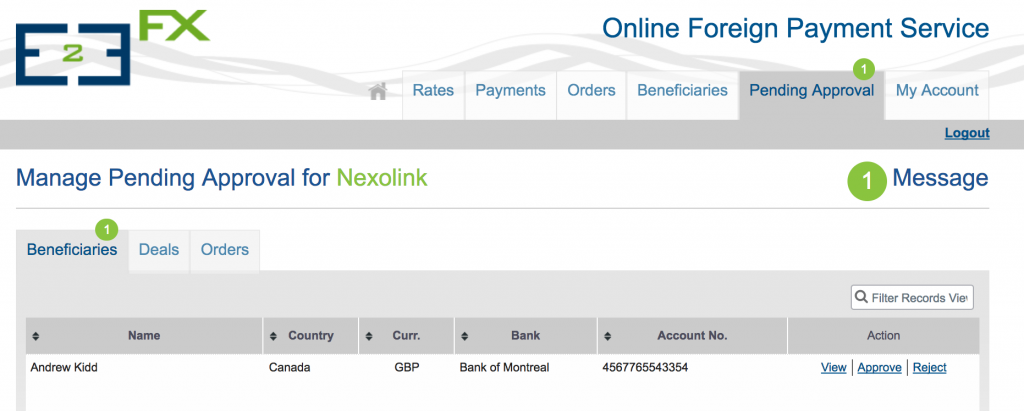
Pending Approval Notification
Approval notifications and Alerts: When Approvals are required on an action like a new deal a notification email is sent to the approval contact that an item is waiting for their attention. When users log into their account if there are any items requiring approval there are two (2) alert icons with a number representing the number of items requiring approval… 1) beside the “Messages” title near the top right of the pages and 2) on the navigation tab for “Pending Approval”. Click on the “Pending Approval” navigation tab to view the items.
Approval Items Display: On the Approvals page there are tabs to view the lists of beneficiaries, deals and orders. These tabs will also have an alert icon on them if they have items in them. Click on the tab for the items you want to review and approve or reject.
- Approving Beneficiaries: Click the “Beneficiaries” tab to view the beneficiary records that need to be approved. You will see a list of beneficiaries along with their bank details (often orange in colour). You will see in the Action column to the right the link options to view, approve or reject the beneficiary, always make sure to thoroughly review the data before approving a beneficiary as this will be the instructions used to send payments to them, any wrong details that are entered here may result in a failure for a payment to be properly delivered (returned payment) and often you will be responsible for possible service charges being applied to any returned payment with your broker.
- Approving Deals: Click the “Deals” tab to view the deals that need to be approved. Due to the nature of constantly fluctuating currency rates, the deals booked that require an approval will have their costs/rates updated/quoted at the time of approval due to the time delay between the booking time and when they are approved. Deals will have a quote button that acts the same as a quote that was made at the time of the trade, once the deal is accepted/approved with the new rate/cost the deal is committed as a trade with your broker and is now binding.
- Rejecting Deals: After viewing the deal and also before any requoting of your deal, you can choose to reject the deal if you decide you don’t want to commit the transaction with your broker, click on the reject link to reject the deal.